
Giada can send MIDI messages to the outside world from both sample channels and, of course, MIDI channels, with some important differences. More precisely, there are two kinds of messages: regular MIDI messages and MIDI lighting messages.
Regular MIDI messages are standard MIDI events, namely the events you record with physical devices or edit in the Action Editor. This type of message can be sent only from MIDI channels. MIDI lighting messages, on the other hand, are special codes used to light up parts of external devices, such as buttons, keys, knobs, and other illuminated controls. This second type of message can also be sent from sample channels.
The following table shows what each type of channel can output:
| regular MIDI messages | MIDI lighting messages | |
| Sample channel | ✘ | ✔ |
| MIDI channel | ✔ | ✔ |
Click the main button of any channel and select Setup MIDI output from the menu to configure how MIDI messages are sent. A new window will open containing several tools.

These messages are managed by the tools shown in the picture above. If you enable MIDI output, MIDI messages are sent outside Giada whenever an action occurs, through the MIDI channel selected in the drop-down menu on the right. This allows you to control external MIDI hardware as well as other software.
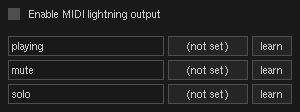
MIDI lighting requires a key binding between the application and your physical device, so that whenever an event occurs, Giada sends a MIDI lighting message to the correct part of your controller.
You bind controller elements to events through the MIDI learning tool shown in the picture above, which works in the same way as the MIDI input learning tool described in MIDI input management.
Currently, you can light up your device for the following events:
Giada needs to know what data to send when MIDI lighting occurs. Since each hardware manufacturer defines its own set of messages, Giada uses midimap files. A midimap is a JSON-formatted text file that defines which messages Giada should send. These files are stored in your configuration directory, more precisely:
Giada looks in these directories at startup. If a file is a valid midimap, it will appear in the Configuration window, MIDI section. Select the midimap file you want to use from the drop-down menu and you are ready to go.
A midimap file follows this naming convention: (brand)-(device).giadamap, using lowercase text. For example, if you own the Akai APC20, the corresponding midimap file would be akai-apc20.giadamap.
Inside a midimap file you will find a collection of JSON objects. Each midimap command is made of two parts: a channel and a message. The following is a complete midimap file with placeholders:
{
	"brand": "[text]",
	"device": "[text]",
	"init_commands": [
		{
			"channel": [MIDI-channel],
			"message": "[hex-message]"
		},
		{
			"channel": [MIDI-channel],
			"message": "[hex-message]"
		},
		...
	],
	"mute_on": {
		"channel": [MIDI-channel],
		"message": "[hex-message]"
	},
	"mute_off": {
		"channel": [MIDI-channel],
		"message": "[hex-message]"
	},
	"solo_on": {
		"channel": [MIDI-channel],
		"message": "[hex-message]"
	},
	"solo_off": {
		"channel": [MIDI-channel],
		"message": "[hex-message]"
	},
	"waiting": {
		"channel": [MIDI-channel],
		"message": "[hex-message]"
	},
	"playing": {
		"channel": [MIDI-channel],
		"message": "[hex-message]"
	},
	"stopping": {
		"channel": [MIDI-channel],
		"message": "[hex-message]"
	},
	"stopped": {
		"channel": [MIDI-channel],
		"message": "[hex-message]"
	}
}
The remaining elements are the events, which define which MIDI lighting message to send when each event occurs.
A MIDI lighting message follows this structure:
{
	"channel": [MIDI-channel],
	"message": "[hex-message]"
}
In detail:
The hexadecimal message contains a special placeholder for the note. Because each message format is vendor-specific, you must specify where the note byte appears. The placeholder is written as nn; Giada replaces it on the fly once the key has been configured and captured with the MIDI learning tool described earlier. Here are a couple of example lighting messages:
{
	"channel": 0,               // MIDI channel 0
	"message": "0x90nn3B00"     // note on byte 2
},
{
	"channel": 7,               // MIDI channel 7
	"message": "0x803Bnn00"     // note on byte 3
},
The following is a midimap file prepared for the Novation Launchpad S MIDI controller:
{
	"brand": "AKAI",
	"device": "LPD8",
	"init_commands": [
		{
			"channel": 0,
			"message": "0xB0000000"
		},
		{
			"channel": 0,
			"message": "0xB0002800"
		}
	],
	"mute_on": {
		"channel": 0,
		"message": "0x90nn3F00"
	},
	"mute_off": {
		"channel": 0,
		"message": "0x90nn0C00"
	},
	"solo_on": {
		"channel": 0,
		"message": "0x90nn0F00"
	},
	"solo_off": {
		"channel": 0,
		"message": "0x90nn0C00"
	},
	"waiting": {
		"channel": 0,
		"message": "0x90nn7f00"
	},
	"playing": {
		"channel": 0,
		"message": "0x90nn7f00"
	},
	"stopping": {
		"channel": 0,
		"message": "0x90nn7f00"
	},
	"stopped": {
		"channel": 0,
		"message": "0x80nn7f00"
	}
}
We store the full list of midimap files on GitHub in the giada-midimaps repository. Download the ZIP archive and extract it into one of the midimap folders listed above.
Pull requests and file submissions are absolutely welcome. If your MIDI controller is missing a midimap file, feel free to add it to the collection.