

A sample channel contains one sample, which you can play manually or control with the main sequencer. The sample channel behavior depends on the selected play mode, as described later in this chapter.
Clicking the main button  lets you load a new audio file and perform additional operations. You can add a new sample channel by right-clicking on each column in the main window, or by dragging and dropping a file onto the column itself.
A sample channel is made up of several components. From left to right:
 Play button — starts and stops the channel (if a sample is loaded);
 Arm button — arms the channel for recording;
 Status box — shows the playback position of the currently playing sample;
Main button — shows the sample name and gives access to many operations. More information is provided in the paragraphs below;
 Read actions button — when enabled, recorded actions for this channel are played back. The button is grayed out if the channel has no actions;
 Mute button — mutes the sample;
 Solo button — enables solo mode. Only this channel will be audible;
 FX button — displays the plug-ins window;
 Volume dial — controls the channel volume;
 Mode box — sets the channel play mode. More information is provided in the paragraphs below.
Clicking a sample channel's main button opens a pop-up menu with several available options:
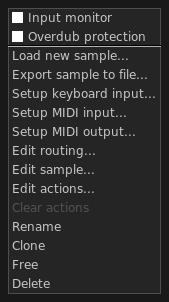
Input monitor — when enabled, it lets you monitor (that is, listen to) the audio input of an armed channel. This option can be enabled or disabled by default in the configuration window, under the "Behaviors" tab;
Overdub protection — when enabled, the arm button is disabled if the channel is not empty. This helps prevent unwanted overwriting of audio recordings during live recording;
Load new sample — replaces the current sample with a new one. Volume, actions, and mode are preserved;
Export sample to file — writes the loaded sample to disk. This option is useful when you want to export a single take without saving the entire project (more information in the Save, load, export section);
Set keyboard input — binds keyboard keys to this channel;
Setup MIDI input — binds MIDI events to this channel. See MIDI input management;
Setup MIDI output — enables MIDI output from this channel. See MIDI output management;
Edit routing — lets you adjust input and output properties such as panning and volume;
Edit sample — opens the Sample Editor;
Edit actions — opens the Action Editor;
Clear actions — deletes recorded actions from the channel: key press/key release, volume, or everything. The option is grayed out if there are no actions to delete;
Rename — changes the channel name;
Clone — adds a new channel by creating a full copy of the current one;
Free — unloads the sample and any recorded actions. Volume and mode are preserved.
Delete — removes the channel from the column. Actions and samples are deleted as well.
The status box provides information about the sample:
 Off — the channel is stopped;
 Wait/ending (blinking) — the channel is waiting for the first beat or is about to stop;
 Play — the channel is active and playing;
 Action recording on — the channel is ready to record actions;
 Audio recording on — the channel is recording audio from the sound card.
Play modes define the behavior of a sample channel and are divided into two families: loop and one shot.
Main features of loop modes:
work only when the sequencer is running;
are constrained to the sequencer boundaries;
you cannot record actions for them.
Main features of one shot modes:
they are independent of the sequencer;
you can record actions for them.
| type | icon | name | effect |
|---|---|---|---|
| loop | | loop basic | The sample starts at beat 1 and plays continuously until its key is pressed again |
 | loop once | The sample starts at beat 1 and plays until it finishes. Then, on the next first beat, it starts again | |
 | loop once bar | Similar to the previous mode, but the sample also starts again at the first beat of each new bar | |
 | loop repeat | The sample starts at beat 1 and plays continuously, rewinding itself at every bar | |
| one shot |  | one shot basic | The sample starts on key press, then stops and rewinds on a second key press |
 | one shot basic pause | Similar to the previous mode, but the sample pauses on a second key press. Pressing the key again resumes playback | |
 | one shot press | The sample plays for as long as its key is held down | |
 | one shot retrig | The sample plays until the end; pressing its key rewinds it | |
 | one shot endless | The sample loops forever; pressing its key stops it |
Sample channels can be played by clicking the channel play button or by pressing the corresponding keyboard or MIDI button, if one is bound. The following table shows the available interactions for sample channels, along with their effect in each play mode:
| mode | event | alt. event | result |
|---|---|---|---|
| loop | (key) | click on play button | if stopped: wait, then start on the next first beat; if playing: ending, then stop on the next first beat |
| shift + (key) | shift + click on play button | immediate stop | |
| control + (key) | click on mute button | mute | |
| one shot | (key) | click on play button | toggle play |
| shift + (key) | shift + click on play button | immediate stop | |
| control + (key) | click on mute button | mute | |
| - | click on read actions button | toggle action playback |